
A gaming PC does not automatically deliver its maximum performance simply because it contains powerful components.
Incorrect memory settings, high temperatures, background applications, outdated drivers, slow storage and poor airflow can all prevent expensive hardware from performing as well as it should.
Fortunately, many PC optimizations cost nothing.
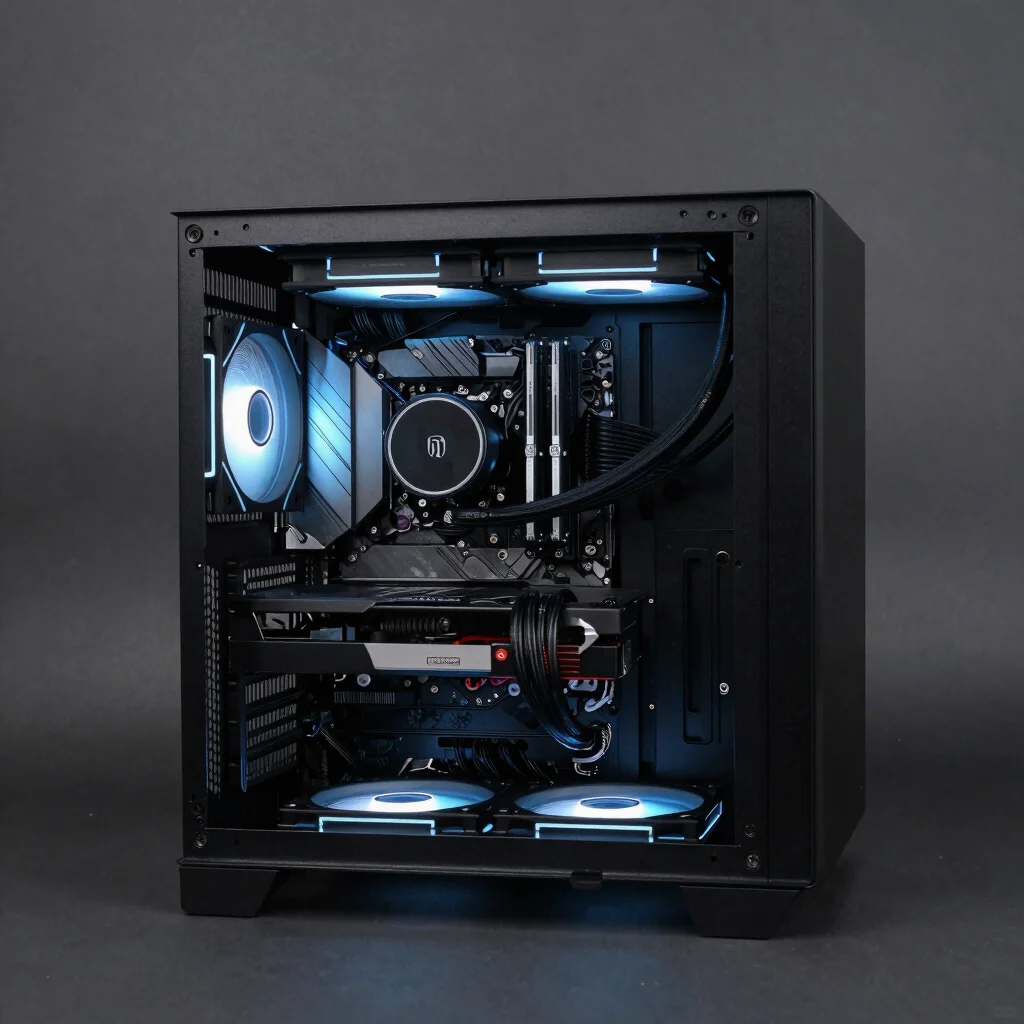
This guide explains how to improve gaming performance, responsiveness, cooling and stability without relying on questionable “FPS booster” applications.
1. Update Your Graphics Drivers
GPU manufacturers regularly release driver updates for:
- new games
- performance improvements
- bug fixes
- stability improvements
- graphics features
Keep your graphics driver reasonably current, particularly before playing a newly released game.
Avoid installing unofficial modified drivers unless you clearly understand the risks.
2. Enable Your RAM’s Correct Memory Profile
Many users purchase fast RAM but unknowingly run it below its advertised speed.
Depending on your platform, the relevant feature may be:
- XMP
- EXPO
These profiles are normally enabled from the motherboard BIOS.
For example, a memory kit sold for a higher DDR speed may initially run at a conservative default specification until its performance profile is enabled.
Always confirm motherboard and CPU compatibility before applying memory settings.
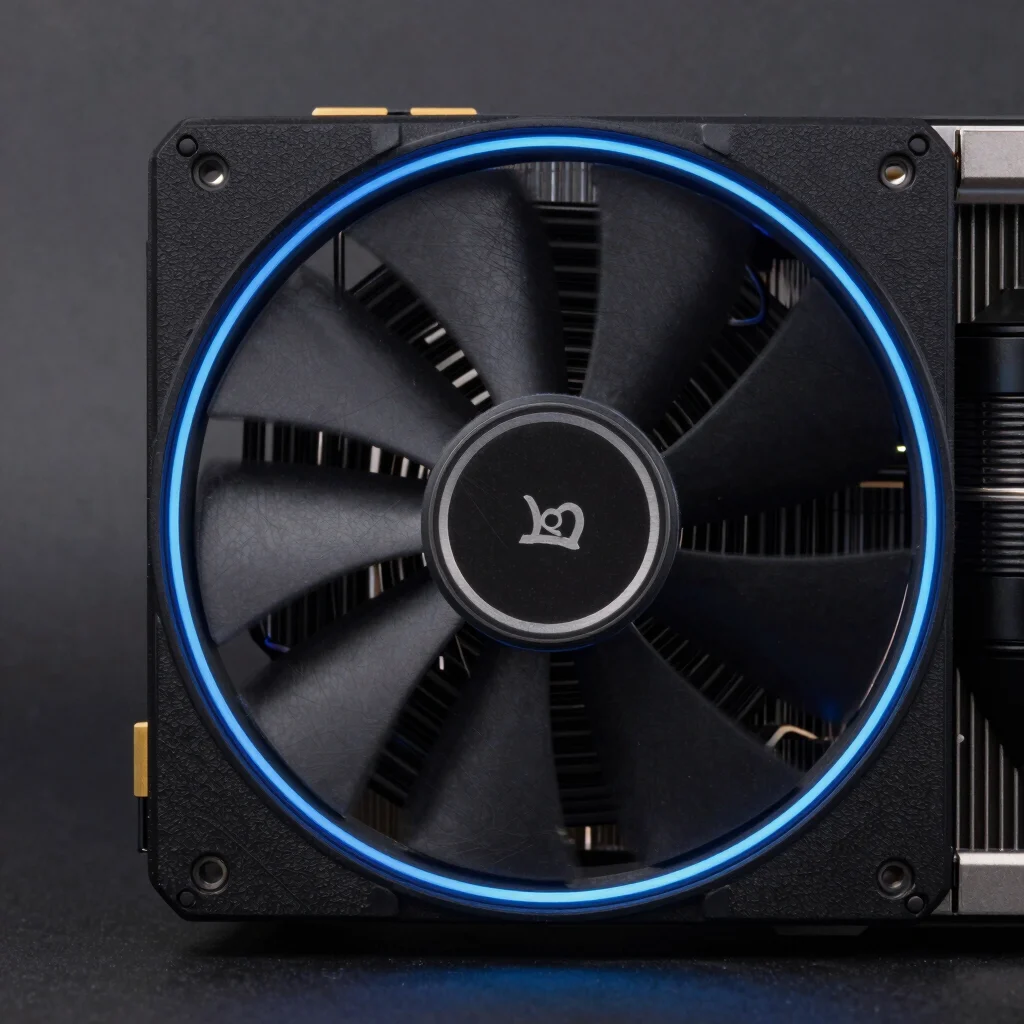
3. Check CPU and GPU Temperatures
Excessive heat can reduce sustained performance.
Monitor:
- CPU temperature
- GPU temperature
- GPU hotspot temperature where available
- SSD temperature
Poor temperatures can result from:
- dust
- weak airflow
- incorrect cooler installation
- aging thermal paste
- blocked vents
- insufficient fans
Keeping components cooler can help them maintain higher boost clocks for longer.
4. Improve Case Airflow
Airflow is one of the most overlooked PC upgrades.
A typical gaming system benefits from:
Intake Fans
Bring cool air into the case.
Exhaust Fans
Remove warm air.
Try to create a clear path where cool air enters from the front or bottom and exits through the rear or top.
Avoid stuffing cables directly in front of intake fans.
5. Remove Dust
Dust gradually collects on:
- fans
- radiators
- filters
- heatsinks
- graphics cards
This restricts airflow.
Periodically cleaning the computer can improve cooling and reduce fan noise.
Turn the system off before cleaning it and follow safe hardware-cleaning practices.
6. Install Games on an SSD
Modern games benefit considerably from SSD storage.
An SSD can improve:
- boot time
- game loading
- level loading
- asset streaming
- Windows responsiveness
NVMe SSDs provide extremely high throughput.
However, upgrading from one good SSD to a faster premium model does not necessarily increase gaming FPS.
Storage mainly improves loading and responsiveness rather than raw GPU performance.
7. Keep Enough Free Storage Space
Running an SSD almost completely full can create performance and maintenance problems.
Leave reasonable free space so Windows and applications have room for:
- temporary files
- game updates
- shader caches
- virtual memory
- application data
8. Close Unnecessary Background Applications
Modern gaming PCs often run dozens of programs.
Common background applications include:
- browsers
- launchers
- RGB utilities
- cloud syncing applications
- communication software
- hardware monitoring tools
You do not need to close everything.
However, if memory or CPU usage is high, shutting unnecessary applications may improve consistency.
9. Disable Unnecessary Startup Programs
Some software automatically launches every time Windows starts.
Open the Windows startup-app settings and disable software you do not need immediately.
Do not randomly disable essential Windows services.
Focus on clearly optional third-party applications.
10. Check Windows Power Settings
Your Windows power configuration can affect how aggressively the system manages processor performance.
For most modern gaming PCs, Windows’ recommended settings are generally appropriate.
Avoid blindly using aggressive third-party “gaming optimization” scripts that disable critical system functions.
11. Optimize In-Game Graphics Settings
Ultra settings are not always visually distinguishable from High.
Dropping certain settings slightly can significantly increase FPS.
Settings that frequently have substantial performance impact include:
- ray tracing
- shadows
- volumetric effects
- reflections
- ambient occlusion
- draw distance
- crowd density
Texture quality behaves differently because it often depends heavily on available VRAM.
12. Use DLSS, FSR or XeSS When Appropriate
Modern upscaling technologies can significantly improve performance.
They include:
- NVIDIA DLSS
- AMD FSR
- Intel XeSS
These technologies can be especially useful at 1440p and 4K.
Experiment with Quality and Balanced modes to find the best trade-off between image quality and performance.
13. Enable Frame Generation When Useful
Supported GPUs and games may offer frame-generation technologies.
These can provide considerably smoother perceived motion in GPU-heavy games.
However, competitive players often care more about native latency and frame responsiveness.
Use the setting that best matches your game.
14. Make Sure Your Monitor Is Running at Its Maximum Refresh Rate
This is a surprisingly common mistake.
Someone may purchase a 165Hz or 240Hz monitor but accidentally leave Windows configured at 60Hz.
Check:
Windows Settings → System → Display → Advanced Display
and confirm the correct refresh rate.
15. Enable Variable Refresh Rate
Technologies such as:
- G-SYNC
- FreeSync
- Adaptive Sync
can reduce visible tearing and improve smoothness.
Confirm the feature is enabled both on your monitor and in the appropriate GPU software.
16. Check Your Resolution
Running a game at a higher resolution dramatically increases GPU workload.
Common resolutions include:
- 1920 × 1080
- 2560 × 1440
- 3840 × 2160
If your GPU struggles at 4K, moving to a lower native resolution or using quality upscaling can substantially improve frame rate.
17. Upgrade RAM If Necessary
For modern gaming:
16GB
Still sufficient for many games.
32GB
Excellent target for a new mainstream gaming PC.
64GB
Primarily useful for gaming combined with professional workloads or very heavy multitasking.
Adding RAM will not automatically increase FPS if you already have enough.
18. Consider a GPU Upgrade
The graphics card has the largest impact on gaming performance in many systems.
Consider upgrading the GPU if:
- you want higher resolutions
- FPS remains low at reasonable settings
- your VRAM is insufficient
- you want stronger ray tracing
- your current GPU is several generations old
Always check power-supply capacity before installing a significantly more powerful GPU.
19. Consider a CPU Upgrade
A CPU upgrade can be useful when:
- GPU utilization remains unexpectedly low
- competitive games are CPU-limited
- minimum frame rates are poor
- the processor is significantly older than the GPU
CPU upgrades can sometimes require a new motherboard and RAM, making them more expensive than they initially appear.
20. Do Not Ignore the Power Supply
A quality PSU does not directly increase FPS.
However, it provides stable power for expensive components.
Choose a PSU based on:
- system requirements
- efficiency
- build quality
- GPU connector requirements
- future upgrades
Never risk a premium graphics card on an extremely cheap power supply.
Best Upgrade Order for Most Gamers
If your existing PC feels slow, consider upgrades in roughly this order depending on your specific bottleneck:
- SSD if you’re still using a hard drive
- RAM if capacity is insufficient
- GPU for gaming FPS
- CPU if processor-limited
- Cooling if temperatures are excessive
- Monitor if your hardware exceeds your current display
Do not upgrade components simply because they are older.
Upgrade the part that is actually limiting your experience.
Avoid Fake FPS Optimization Tricks
Be cautious with applications or scripts claiming things such as:
- double your FPS instantly
- unlock 300% performance
- optimize all Windows services
- permanently boost GPU speed
Many provide little benefit.
Some can cause:
- instability
- broken Windows features
- security problems
- driver issues
Reliable optimization usually comes from correct hardware configuration, good cooling, updated drivers and sensible game settings.
Frequently Asked Questions
Does cleaning a PC improve FPS?
It can if dust is causing temperatures high enough to reduce boost performance.
Does more RAM increase gaming FPS?
Only when insufficient RAM is creating a bottleneck.
Will an SSD increase FPS?
Usually not significantly. Its main advantages are faster loading and better system responsiveness.
Should I overclock my GPU?
Modern GPUs already boost aggressively. Manual overclocking can provide additional performance but also increases power consumption and heat.
What is the easiest way to improve FPS?
Lower GPU-heavy settings and use a supported upscaling technology before spending money on new hardware.
Final Thoughts
The best gaming PC optimization is not a mysterious registry tweak or an “FPS booster.”
It is a properly configured system.
Focus on:
correct RAM settings + current GPU drivers + healthy temperatures + good airflow + SSD storage + sensible graphics settings + balanced hardware.
These changes can help your gaming PC deliver the performance its components were designed to provide.